
Build a Personal YouTube Library Inside Obsidian with Web Clipper and Bases (free Source.base file)
If you save articles or YouTube videos into Obsidian, this workflow will save you hours every month. (You’ll find the free Source.base file at the end.)

One of my consulting clients asked for a simple way to capture articles and YouTube videos straight into Obsidian, without breaking focus or adding extra steps.
Good news. You can automate the entire thing.
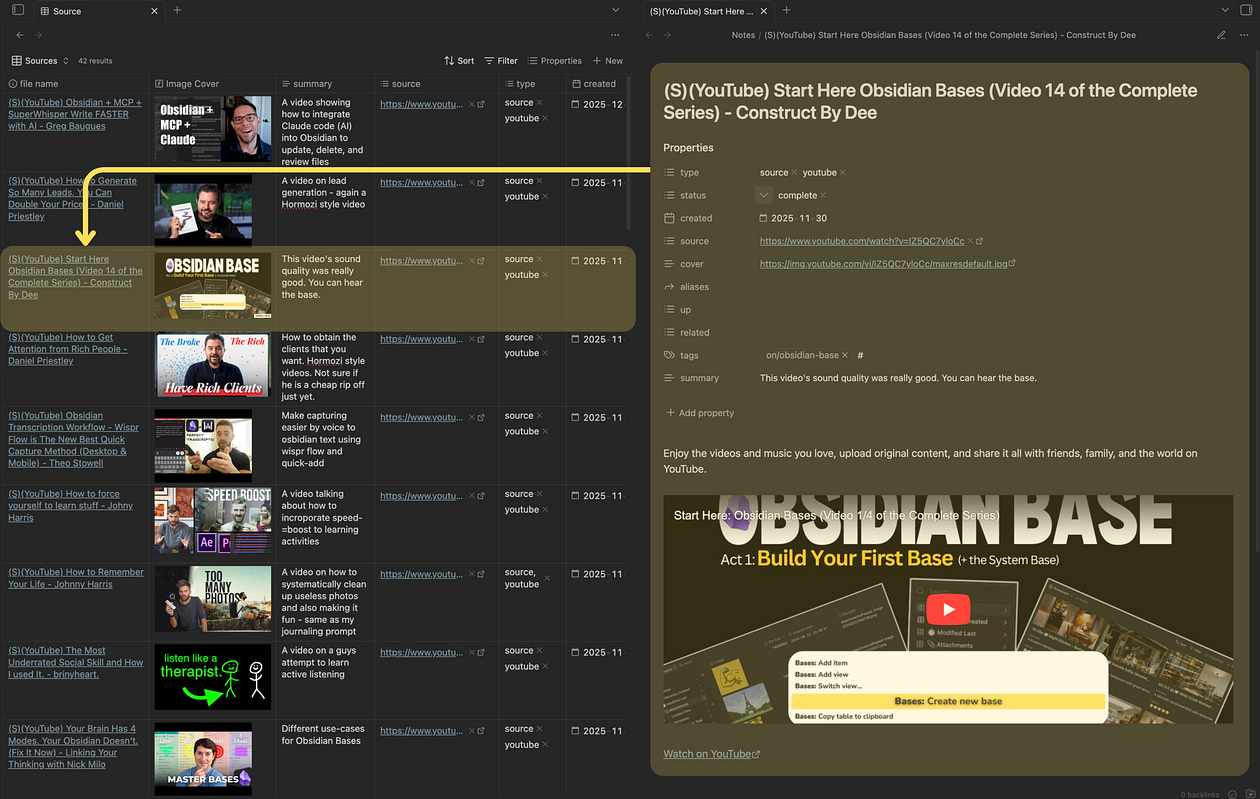
With Obsidian Web Clipper and Obsidian Bases, you can create a smooth little pipeline that pulls in videos, thumbnails, descriptions, and links, all neatly organised and ready to revisit later.
This is one of those setups that feels small but compounds massively over time. It turns random online discoveries into a growing library of knowledge inside your vault.
And if you’re building a serious PKM system or you want your Obsidian to feel more like a personal search engine than a pile of notes, this is a perfect place to start. (I build systems like this for clients every week, so if you want a done-with-you setup that saves you dozens of hours, you’ll know where to find me.)
Here’s how the workflow works at a glance:
You find a YouTube video worth saving
You tap the Obsidian Web Clipper
It recognises the page and uses your YouTube template
It sends the video to your vault as a fully formatted note
Your Source.base automatically detects it and pulls in the thumbnail and the other metadtata properties for instant visual scanning later
Simple. Yet quietly powerful.
Now let’s build it.
The setup
This whole system only needs three pieces:
Install the Obsidian Web Clipper
Create a template for your captured sources
Build a Source.base to pull everything in automatically
Once this is done, every YouTube video or article you save becomes a structured, searchable asset instead of a forgotten bookmark.
(And if you want the exact versions of these templates and Bases that I use in my own vault, they’re included in my Obsidian Evergreen Vault)
Let’s break it down.
1. Install Obsidian Web Clipper
Open the Obsidian Web Clipper site and install the extension for your browser.

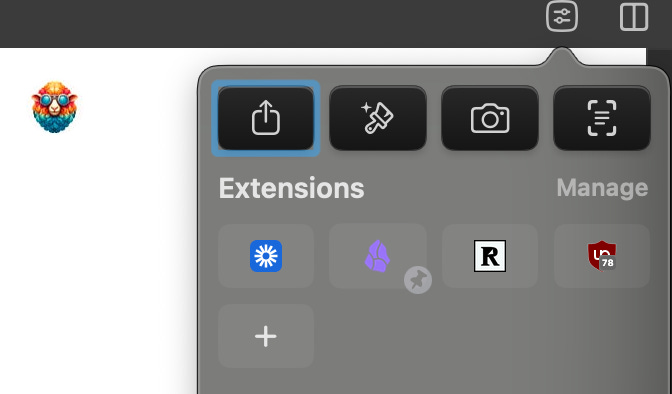
You’ll now find a handy obsidian icon to press whenever you want to send a web page to your Obsidian.That icon becomes your capture trigger.
Any time you want something inside your vault, you hit it and it goes straight in.
2. Create a Template for Your Captured Sources
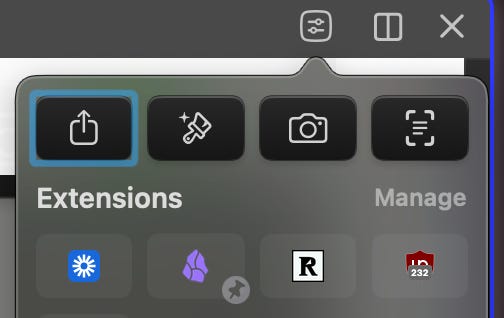
Click the Obsidian Web Clipper icon, then tap the little gear to open the settings. This is where you control everything, including the templates you’ll use for videos, articles, and other capture workflows.
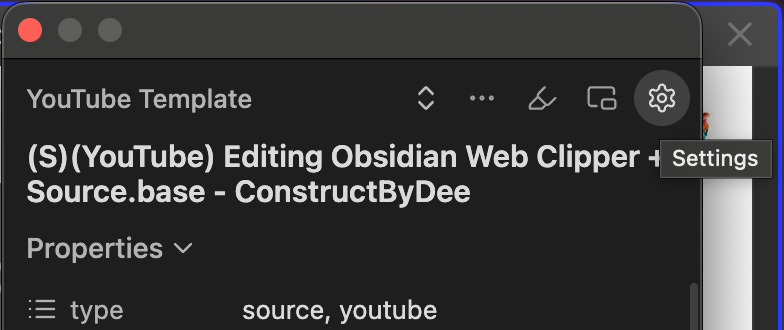
Create a new template and name it something like YouTube Template.
Here’s the structure:
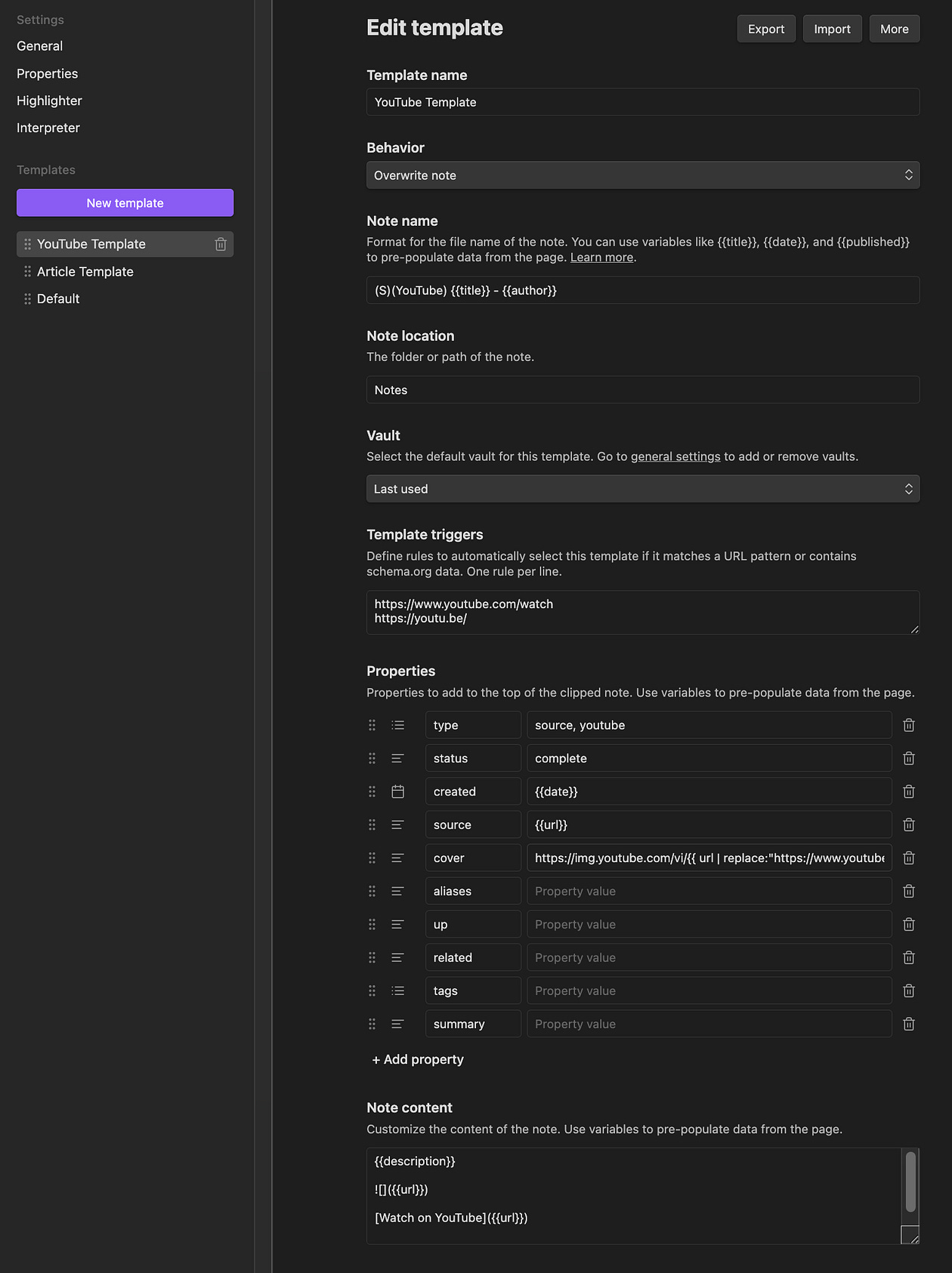
Note Name:
(S)(YouTube) {{title}} - {{author}}Note Location:
Pick the folder where you want your saved videos to live.
I just send mine to the main Notes folder.
Vault:
Select Last Used. The extension will automatically detect which vault is active.
Template Triggers:
These make the Web Clipper recognise that you’re on YouTube.
https://www.youtube.com/watch
https://youtu.be/
Properties (YAML):
These appear at the top of your captured note.
Here’s the thumbnail formula that lets your Source.base display the actual YouTube thumbnail right inside your table:
Body of the Note:
{{description}}

[Watch on YouTube]({{url}})This gives you a beautifully structured source note:
description, embed, and link.
(If you’re already imagining how this could work for articles, podcasts, books, and research, that’s exactly what I help people build in my consulting sessions.)
3. Build a Source.base to Auto-Collect Everything
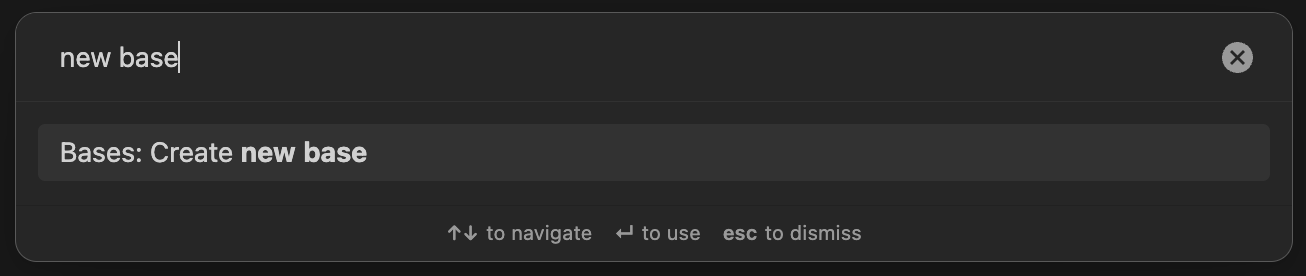
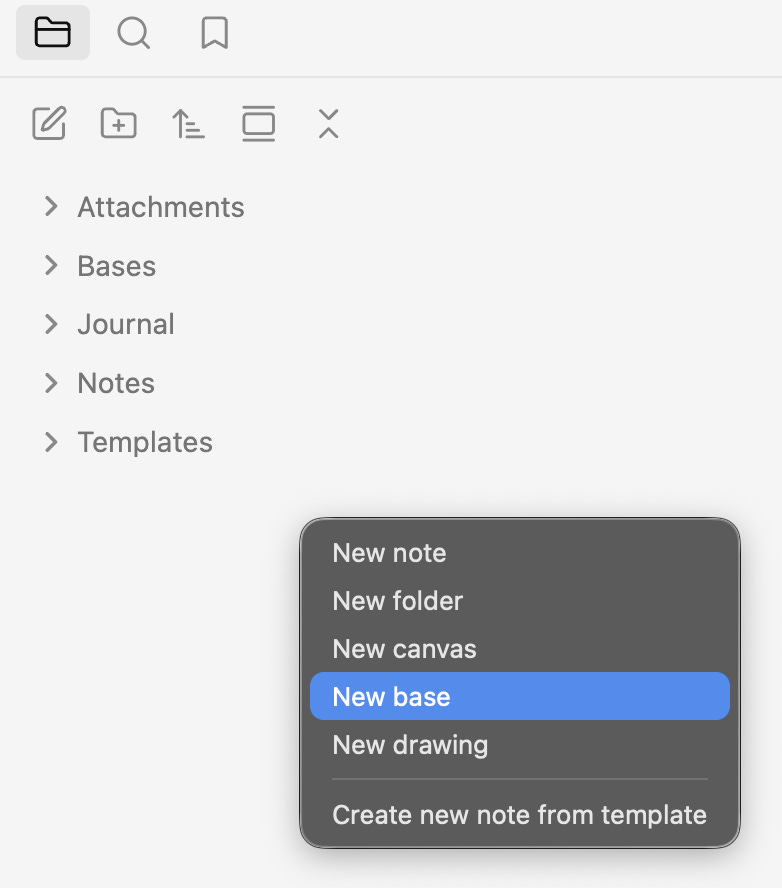
Back inside Obsidian, create a new Base and call it Source.base.
You can do this from the Command Palette or by right-clicking in the folder sidebar.
Your Base only needs two filters:
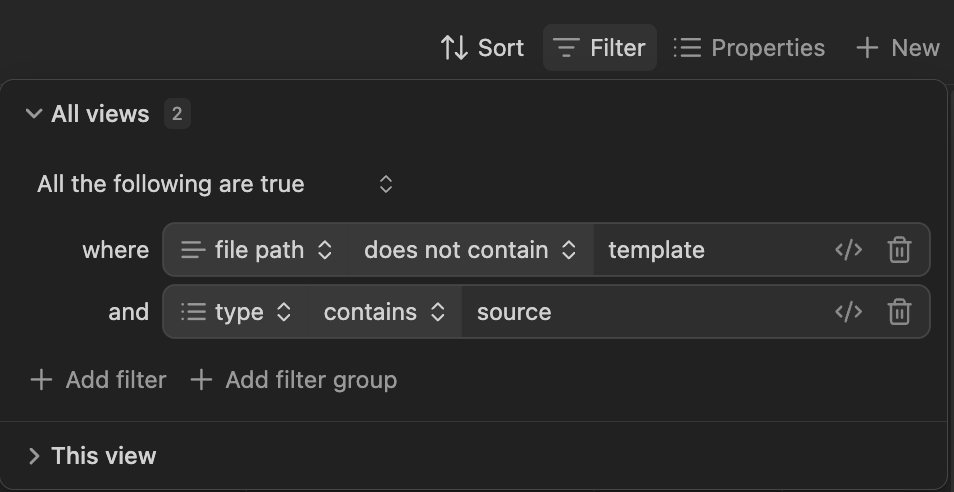
The only column that requires a formula is the cover property.
This will surface your thumbnails directly in the Base so you can visually browse every video you’ve saved.
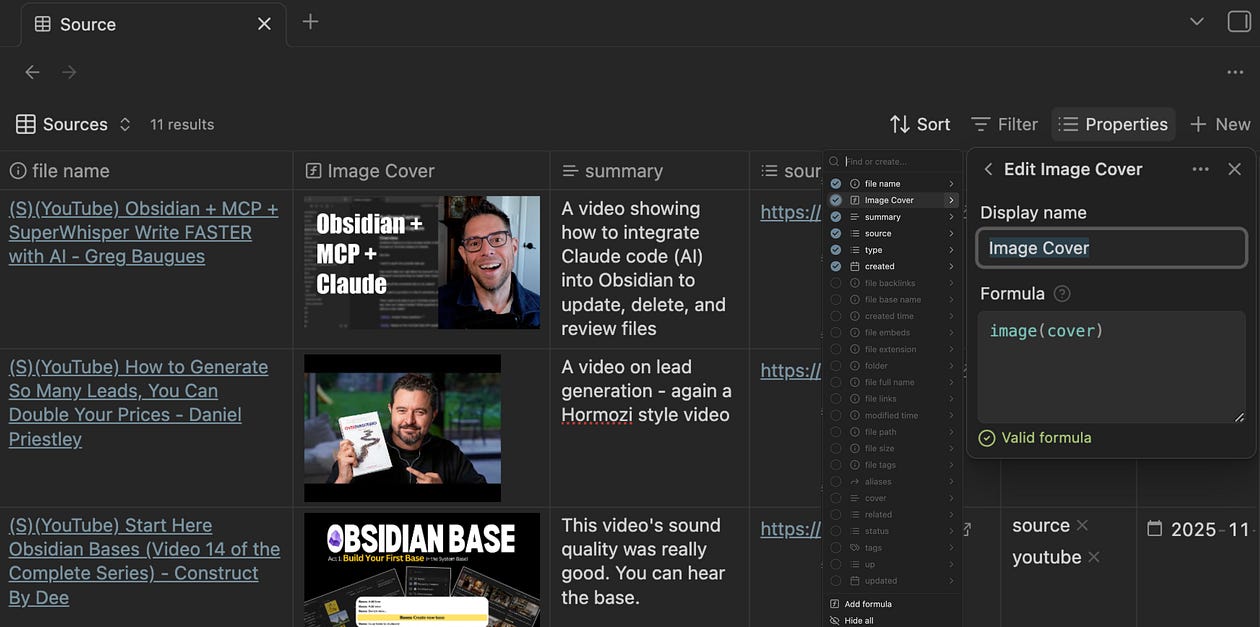
And that’s the setup.
Once you do it once, you never have to touch it again.
Importing a YouTube video!
Time to try it.
Go to YouTube and find a video that piques your interest and deserves a cozy little home in your Obsidian vault.
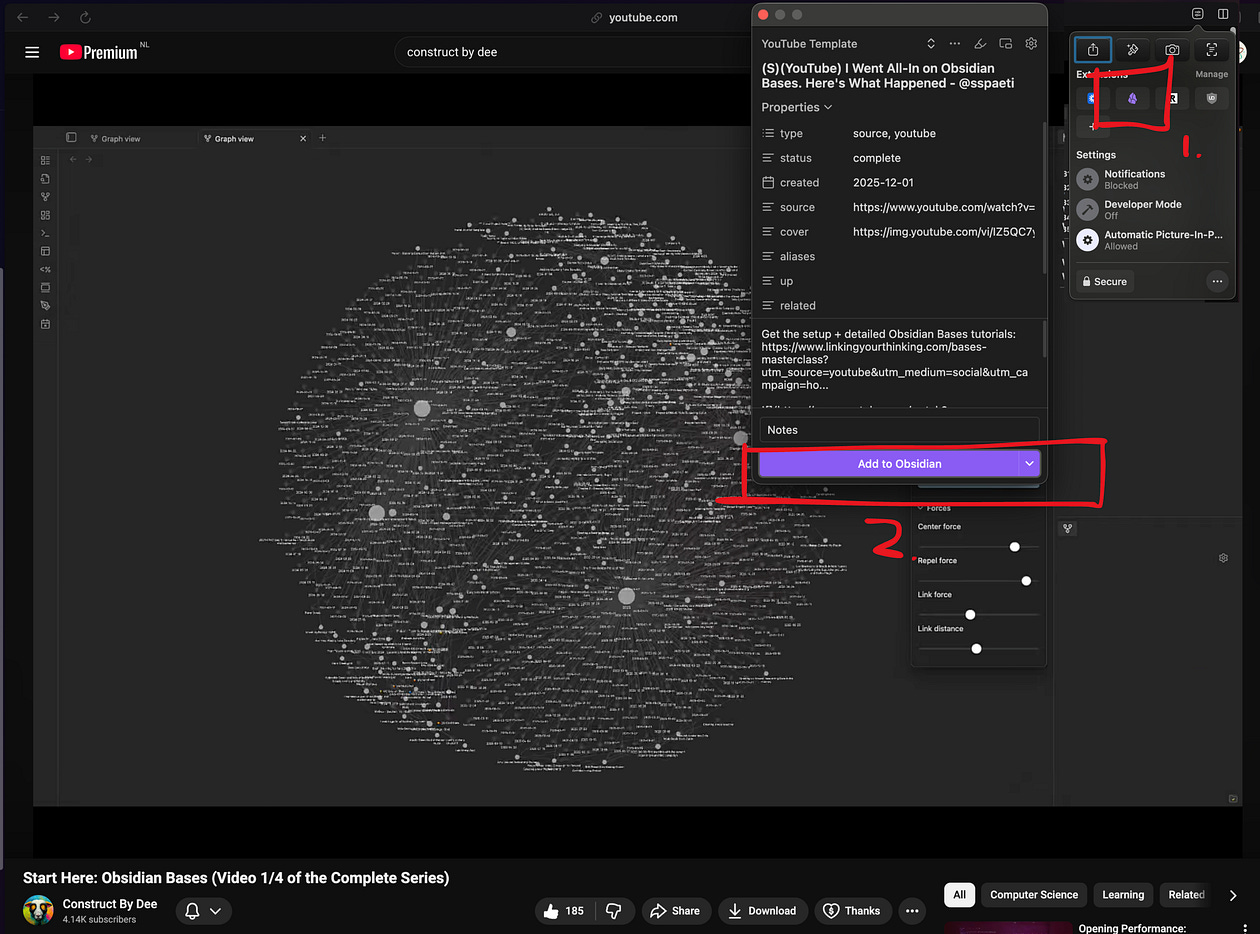
Click the Web Clipper icon.
Select your YouTube Template.
Add any tags or a short summary if you want.
(For multiple tags, separate them with commas: #tag1, #tag2.)
Then hit Add to Obsidian.
A new note will appear in your vault almost instantly.
Now open your Source.base.
Your new video should already be there, thumbnail included.
No sorting.
No renaming.
No dragging notes into folders.
Just one click and it’s structured, categorised, and ready when you need it.
This is how a PKM system becomes useful instead of overwhelming.
You build momentum one workflow at a time, and each one quietly supports the next.
Free Source.base file
Here is the free Source.base file if you are feeling a little lazy today.
If you want to take this further:
I’ve built complete Obsidian systems for journaling, work, and study that use workflows exactly like this
I teach people how to build custom setups during consulting sessions
And for students, I’m releasing a study vault with a mini-course that turns your vault into a learning companion rather than a folder full of notes
If this workflow saved you time, you’re going to enjoy what comes next.
And if you ever want help building a system that feels effortless to use, I’m one message away.
Strength and honour, Dee.
Products and Services
🔗 Weekly Email Newsletter: A short weekly message about what I am working on, what I discovered recently, and some exclusive offers…
🔗 Obsidian Consulting: Quick results with your Knowledge Management setup or I don’t get paid…
🔗 Obsidian Setups: Journal, Work, Study, Writing…
🔗 Obsidian Courses: Obsidian 101, Study, Writing…
🔗 YouTube Channel: Free tutorials baby…
🔗 Website: Website to everything else…
Website | YouTube | X / Twitter | Newsletter