
Building a Dynamic Base Table in Obsidian
Setting up an Obsidian Bases table that is re-used over and over again.

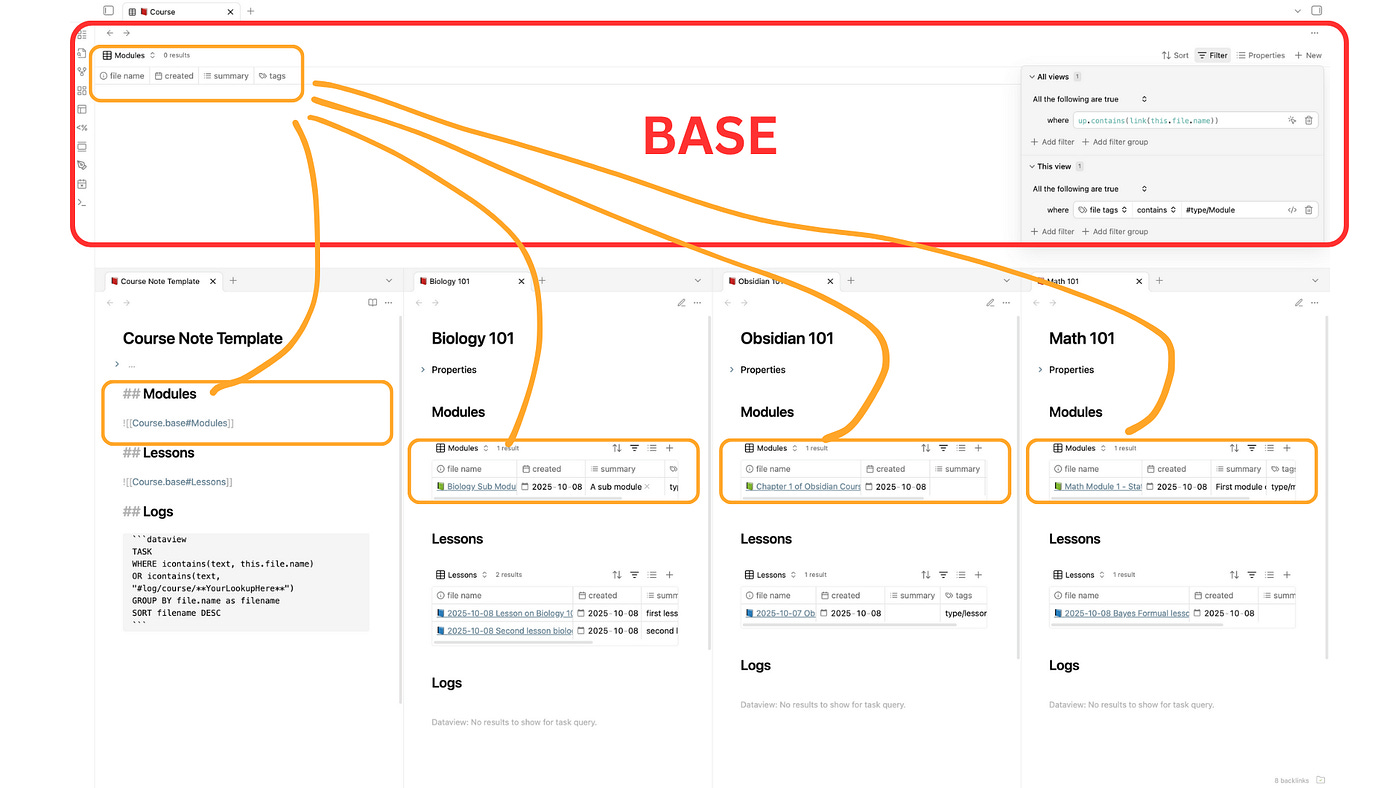
Imagine you’re a student taking several courses:
Maths 101
Biology 101
History 101
Each course includes the same types of notes — Modules, Lessons, and Study notes.
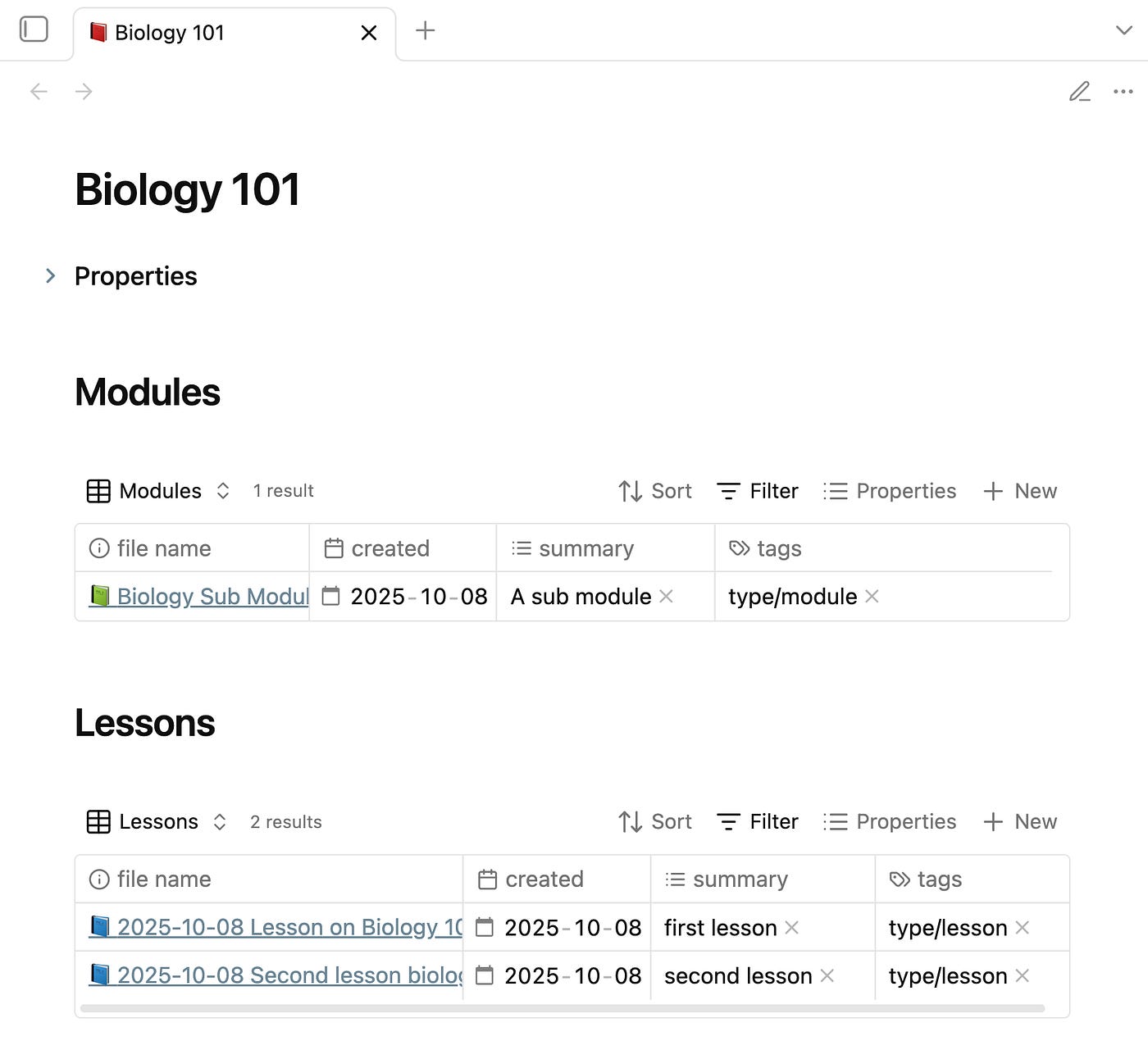
When you open a Course note, you want to see all its related notes automatically, neatly organized in a table — without setting filters every time.
That’s what a dynamic Base and Templater lets you do.
The Goal
We’ll build a Base that automatically detects the current Course and displays all related notes — using the up property, as well as related tags.
The up property acts as a parent link.
It tells Obsidian:
“This note belongs up to that Course.”
For example, the metadata in a Lesson Note might include:
---
up: “[[Biology 101]]”
tags: “#type/lesson”
---
With that in place, your Base can find all notes where “up” equals the current Course note.
Every view inside this Base — Modules, Lessons, etc. — will automatically inherit that logic.
This means when you create a new Course note all the tables are already set up and ready to go!
Step-by-Step Setup
1. Create a new Base
2. Add your table columns
Choose what you want displayed — title, dates, tags, summary, etc.
3. Add the up condition to match this.file.name
Filter “all views” in the Base to only show notes where up matches the current note.
The code:
up.contains(link(this.file.name))4. Create sub-views
Add separate views for Modules and Lessons — each inherits the up filter and adds its own tag (#type/module, #type/lesson).
5. Embed the Base in your template
Include the Base inside your Course Note Template (we use the Templater plugin to use templates).
Every new Course note you create will instantly show its related notes — no extra setup.
It works exactly the same as embedding a note, simply follow the following syntax:
![[Your-Base.Base#Your-Base-View]].
The Result?
You now have a dynamic Base Table in your Course Note Template that updates itself.
Each new Course — Maths 101, Biology 101, History 101 — automatically displays its Modules and Lessons.
Create a new course note using the Course Note Template:
Create a new module which the Base Table automatically picks up:
Create Lessons which the Base Table Automatically picks up:
Lesson 1:
Lesson 2:
And this idea doesn’t just apply to studying.
You can use the same structure for projects, where notes like Sub Projects, Meetings, Notes, and Stakeholders link back to their parent Project note.
Any repetitive table/view can now be automated in Bases!
The pros of this approach
Previously, we used Dataview queries in templates to make tables dynamic. The issue was that any change — like adding a column — meant manually updating every template and every note already created from it.
With Bases, one update changes everything.
Add a new column (like Status or Updated Date) to your Base, and it instantly updates across all linked notes — past and future.
And Bases are just easier to work with. It feels… nice?
Kay. Bye.
Need help or want to accelerate your journey?
Obsidian Setups: Journal, Work, Study, Writing…
Obsidian Consulting: The quickest way to get ahead…
YouTube Channel: Free tutorials baby…
Website: Website to everything else…